Create API KEY
How to Create and Manage Your API Keys
An API key is the “pass” that allows your application, endpoint, or project to access our services.
To protect the security of your account, we recommend creating separate keys for different purposes and keeping them properly secured.
Here are the detailed steps for creating a new key
Key creation process
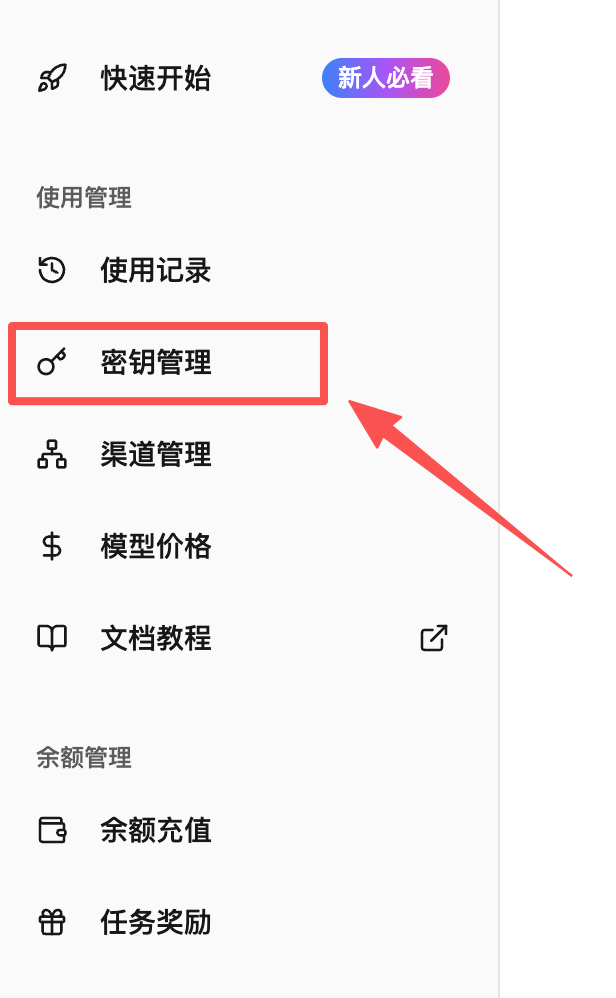
1. Go to the key management page
After logging into your account, look at the navigation bar on the left. Find and click "Key Management" in the menu.
After clicking, you will enter the key list management page, where the status of all your current keys is displayed.
2. Start creating a new key
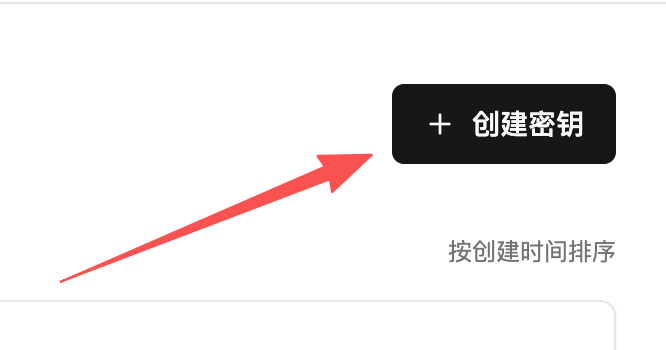
In a prominent position on the key management page (top right), click “Create Key” button, and the system will pop up a new dialog box
3. Set an easily recognizable name
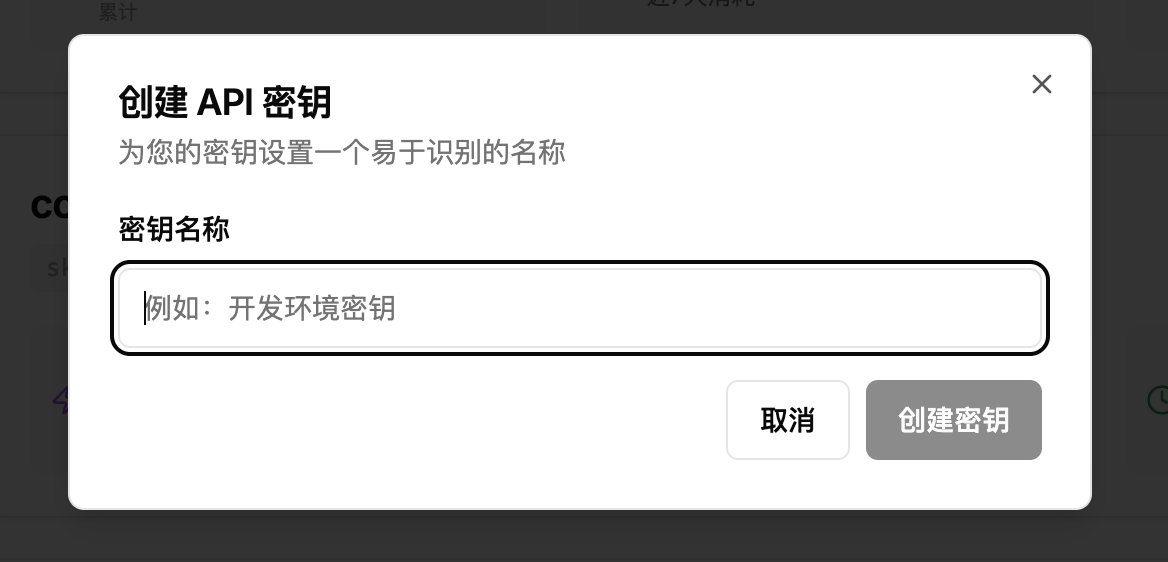
In the dialog that appears, you need to set a name for this new key.
A good name will help you quickly recognize what this key is used for in the future.
Naming recommendations
You can flexibly choose a name based on your actual use case, for example:
- Name by project:“E-commerce Site Integration”, “Internal Testing Project”
- Name them after team members:“Zhang San’s development key”, “Li Si’s testing key”
- Name by device type:“Company Desktop”, “My MacBook Pro”
4. Back up your keys immediately (critical!)
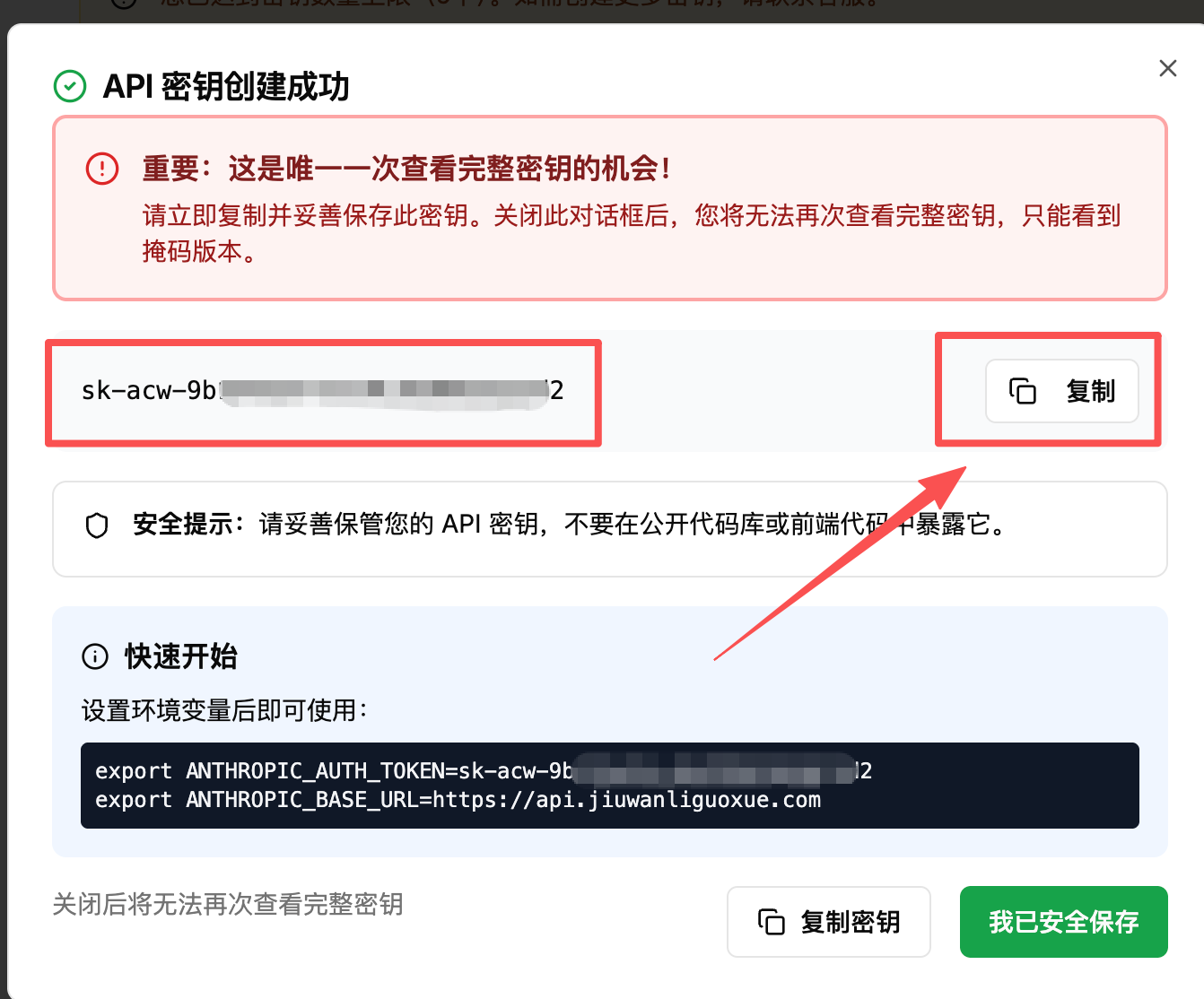
After entering a name and clicking Confirm, the system will generate and display your new key.
Extremely Important Safety Notice
Be sure to copy this key now and store it securely!
- This is your only chance to see the full key.
- For top-level security and confidentiality considerations,our system does not store your keys in plaintext.
- Once you close this window or refresh the page, you will never be able to view this key again.
If you accidentally lose the key, you will not be able to recover it; you can only delete the old key and create a new one.
Limitations and Notes
To ensure platform security and the rational use of resources, we have set a default limit on the number of keys.
- Default limit: Each account can have up to 5 active keys by default
- Increase quota:If your business growth requires more keys, please feel free to contact our customer service team. We will assess your needs and make the appropriate adjustments for you.